
Choose the engine and model
Each conversation keeps its own provider, model and effort. This page shows where to set them, how to read your quotas and how to change several agents at once.
The bar under the message box groups these settings.
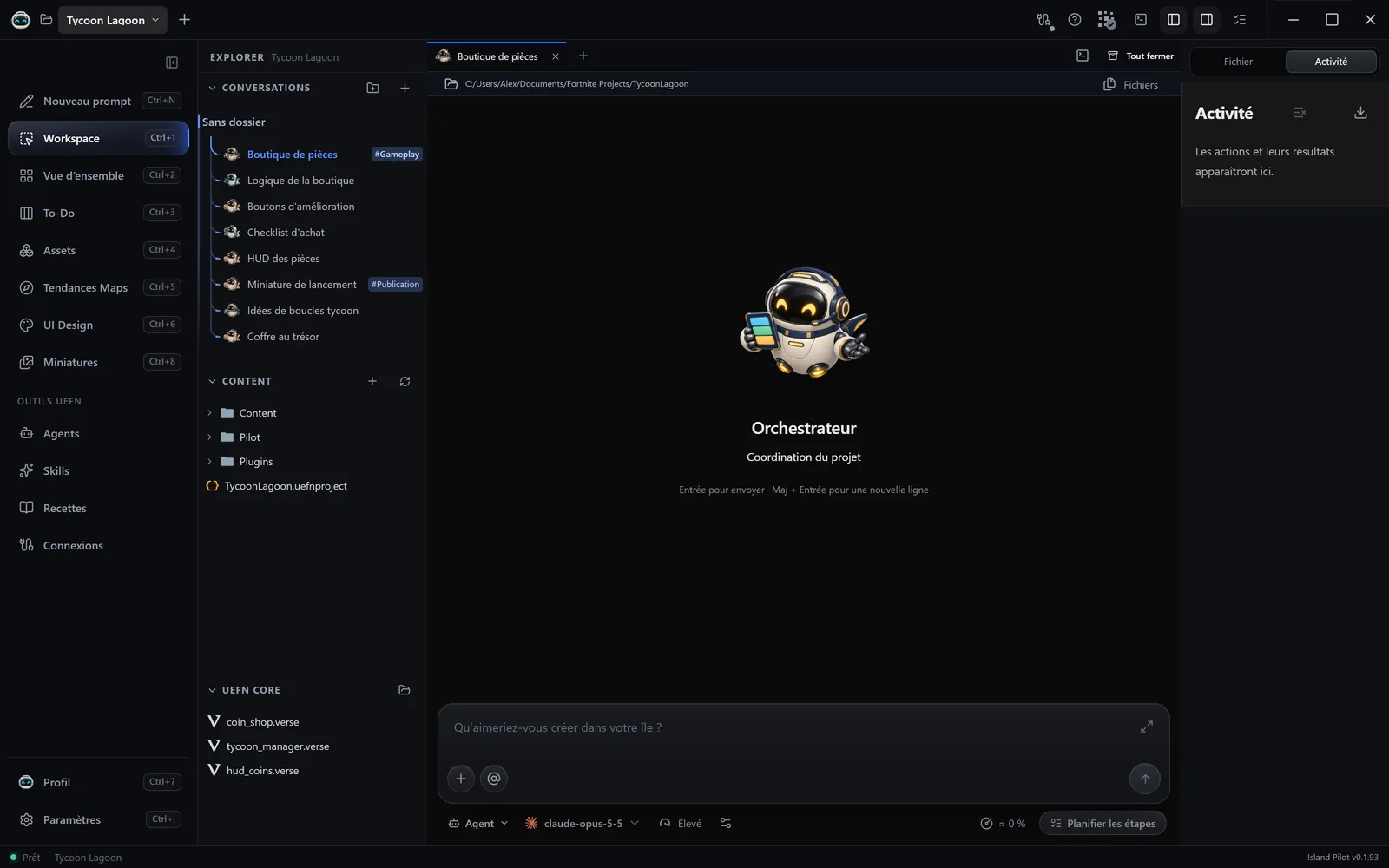
The provider
Section titled “The provider”- Click the Fournisseur et profil (Provider and profile) icon in this bar.
- In Votre moteur de création (Your creation engine), choose under Fournisseur (Provider). Only enabled gateways are offered.
The model and the effort then go back to Auto. Island Pilot keeps the history itself, so it follows the change. However, a conversation that contains images cannot continue on Gemini CLI. These settings are locked while an agent is working in the conversation.
The model
Section titled “The model”Click the model name in the bar, then choose from the list.
| Provider | List offered | Auto | Adjustable effort |
|---|---|---|---|
| OpenAI · Codex | Codex’s local catalogue | The CLI’s choice | Depends on the model |
| Anthropic · Claude | A list supplied by Island Pilot | The CLI’s choice | Yes |
| Google · Gemini | A list supplied by Island Pilot | The CLI’s choice | No |
| OpenCode | The catalogue for your access | No, a model is required | Depends on the model |
| xAI · Grok | Your account’s catalogue | First model in the catalogue | Depends on the model |
For a model that is not in the list, open Identifiant personnalisé (Custom identifier) in Fournisseur et profil, enter the Identifiant du modèle (Model identifier), then click Utiliser ce modèle (Use this model). With an unknown identifier, the effort stays on Auto. This does not work with OpenCode, which requires a model from its catalogue.
Reasoning effort
Section titled “Reasoning effort”Click the effort shown in the bar, to the right of the model. The higher it is, the more thorough the answer, but the slower it is and the more of your limits it uses.
The levels are those of the exact model: Faible (Low), Moyen (Medium), Élevé (High), Extra, Max, and depending on the catalogue Sans (None), Minimal or Ultra. Recommandé (Recommended) marks the model’s default level. Forte consommation (High usage) marks Max and Ultra.
On the Auto model, only the Auto effort is available: choose a specific model first. Changing the model puts the effort back on Auto.
Quotas
Section titled “Quotas”The gauge in the bar opens Contexte et quotas (Context and quotas). It shows the share of context used when the model’s maximum size is known, preceded by ≈ if it is an estimate, and Quota min. (Min. quota): what is left on the most depleted limit.
| Provider | Quota shown |
|---|---|
| OpenAI · Codex | Yes, limits shared across the account, with no precise match per model |
| Anthropic · Claude | Yes, the subscription’s limits |
| Gemini, OpenCode, Grok | No: “Ce fournisseur ne communique pas son quota à Pilot.” (This provider does not share its quota with Pilot.) |
Reading the quota calls no model and uses nothing. It is redone when the panel opens and at the end of a run, or with Actualiser le quota (Refresh the quota). While the agent is working, the last reading stays displayed.
Switch engine
Section titled “Switch engine”To move several agents to another subscription, for example when a quota is used up:
- Open Agents in the sidebar.
- Click Changer de moteur (Switch engine).
- Tick the agents concerned and, if needed, Conversations sans profil (Conversations without a profile). Everything is ticked at the start.
- Choose the Fournisseur, the Modèle (Model) and the Effort de raisonnement (Reasoning effort).
- Leave Mettre aussi à jour les conversations existantes de ces agents (Also update these agents’ existing conversations) ticked. Otherwise, each conversation keeps its current engine.
- Click the Appliquer à (Apply to) button, followed by the number of agents, for example “Appliquer à 3 agents” (Apply to 3 agents).
The change applies to the open project. No agent must be working in it: otherwise, “Arrêtez les agents de ce projet avant de le modifier.” (Stop the agents in this project before changing it.) The new engine still reads the project’s files, the reports and the To-Do.