
The Workspace
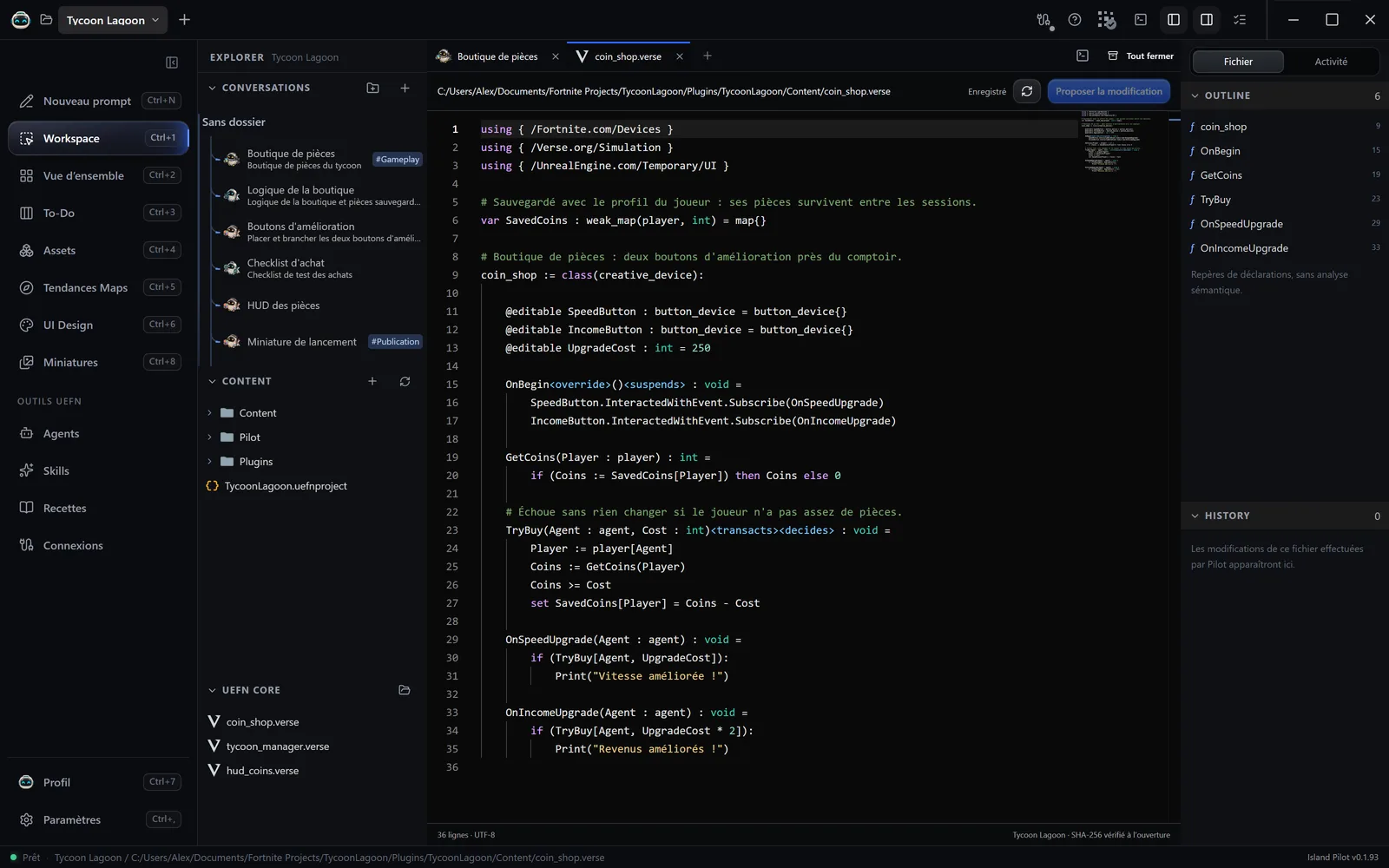
The Workspace (Ctrl+1) is the project’s workshop: your conversations, your files and your terminal. This page introduces each area.
The Explorer
Section titled “The Explorer”The left-hand panel is hidden with Masquer l’Explorer (Hide the Explorer), in the top bar. It has three parts.
Conversations: your exchanges, which you can sort into folders by drag and drop. The right-click menu offers Renommer et tags… (Rename and tags…) (8 tags at most), Organiser les groupes… (Organise the groups…) and Supprimer la conversation… (Delete the conversation…), which is unavailable while an agent is working in the project. Deleting a folder keeps its conversations.
Content: the files of the project folder. Names starting with a dot and the node_modules and target folders are not shown, and each folder shows 1,000 entries at most. The right-click menu offers Nouveau dossier… (New folder…), Nouvelle classe Verse… (New Verse class…), Nouveau fichier… (New file…) and Actualiser (Refresh). To rename or delete a file, use Windows File Explorer.
UEFN Core: the digests generated by UEFN, that is to say the files that describe the available Verse functions. They open read-only. If they do not appear, choose their folder with the folder icon. The secours (backup) mention flags a backup copy of a digest that UEFN removed when it regenerated itself. It comes back the next time the project is opened or Verse is compiled.
The editor
Section titled “The editor”A file opens in a tab, 40 tabs at most. Images are shown as a preview. A project text file larger than 512 KiB does not open.
Your changes do not touch the disk straight away.
- Edit the file. The file bar shows Brouillon modifié (Draft modified).
- Click Proposer la modification (Propose the change), or press
Ctrl+S. - Approve in the Activité (Activity) panel. The file is then written.
If you close the tab before proposing, the draft stays for this session and the file on disk does not change. Tout fermer (Close all) is unavailable as long as a draft or a terminal is open.
The PowerShell terminal
Section titled “The PowerShell terminal”- Click Terminaux (Terminals), in the top bar.
- Click Nouveau terminal (New terminal).
A PowerShell tab opens in the project folder. It uses pwsh if it is installed, otherwise Windows PowerShell.
This terminal is yours alone: the agents have no access to it. Closing the tab ends the session, and its commands are not replayed.
The inspector
Section titled “The inspector”The right-hand panel has three views.
| View | Contents |
|---|---|
| Fichier (File) | Outline: the declarations of the open Verse file, which you can click. They are landmarks, with no analysis of the code. History: the changes made to this file by Island Pilot, with their differences. |
| Activité | The agents’ actions and what is waiting for your approval. |
| Versions | The project’s Lore revisions, read-only. Submissions and syncs are done in UEFN. If UEFN is open, Island Pilot shows its latest reading or asks you to close UEFN. |
The status bar
Section titled “The status bar”At the very bottom of the window:
- on the left, the status: Prêt (Ready), Agent en cours (Agent running) or the number of agents running;
- then the project name and the open file;
- on the right, the Island Pilot version.