What UI Design is for
UI Design (Ctrl+6) is where you draw your game’s interface, then have it built in UEFN. This page tells you what you will find there and who does what.
What you draw there
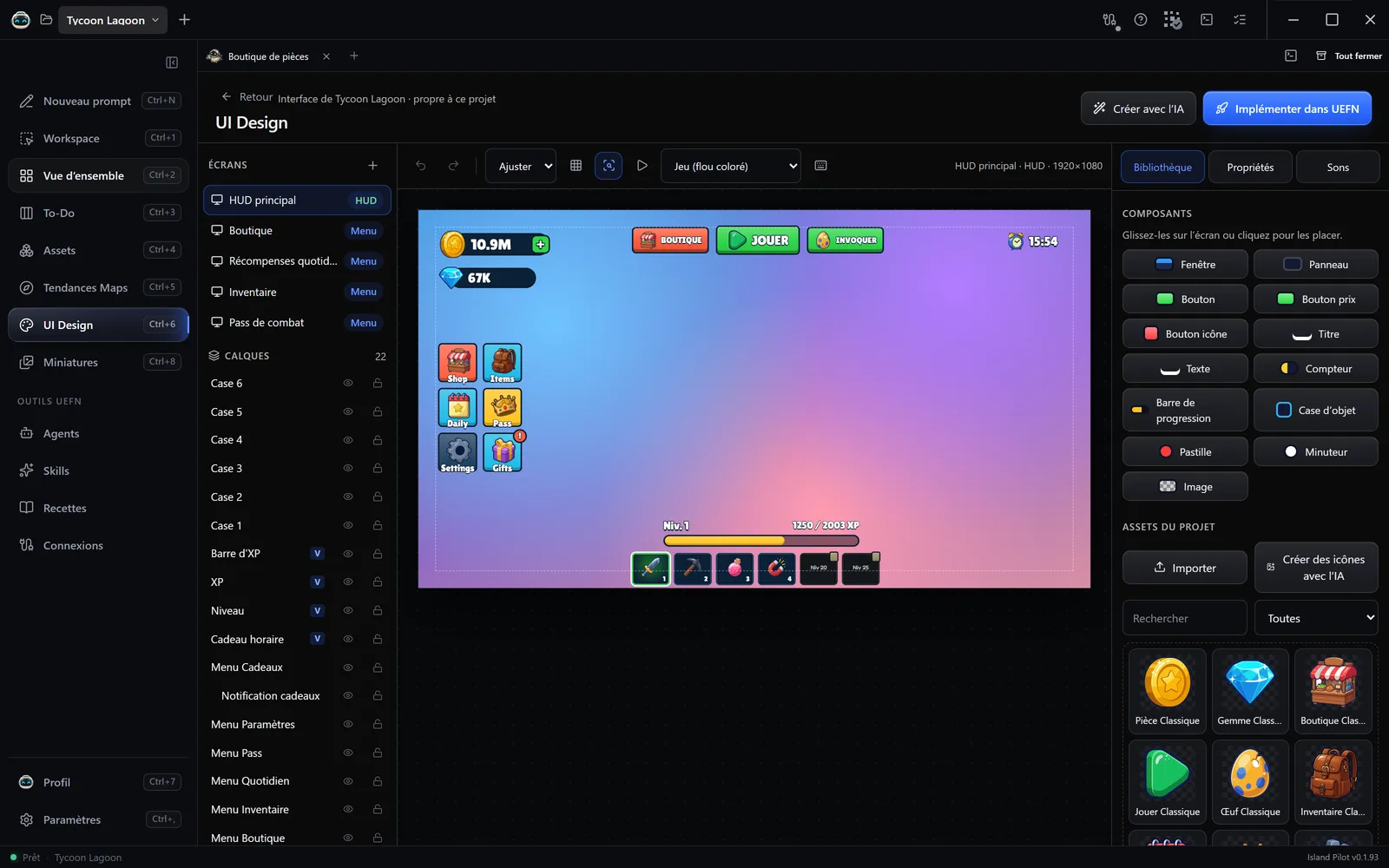
Section titled “What you draw there”Each screen is a 1920×1080 pixel canvas, of one of these three types.
| Type | In game |
|---|---|
| HUD | Stays on screen during the game. |
| Menu | Opens on demand. |
| Popup | Opens on demand, for example to announce a reward. |
The canvas is a mock-up. Nothing appears in your island until the screen is built in UEFN.
The design belongs to each project. It lives in the project’s Pilot/UI Design folder and is saved automatically.
The areas of the tab
Section titled “The areas of the tab”| Area | Contents |
|---|---|
| Écrans (Screens) and Calques (Layers), on the left | The list of screens, then the elements of the open screen, which you can hide or lock. A V marks an element linked to a game value. |
| Canvas, in the centre | The open screen, the zoom, the grid, the HUD safe zone (48 pixels from each edge), animation playback and the preview background. |
| Right-hand panel | Bibliothèque (Library), for components and images; Icons, for the icon packs; Propriétés (Properties), for the selected element, or the screen if nothing is selected; and Sons (Sounds), for the interface sounds. |
Two agents, two roles
Section titled “Two agents, two roles”You can draw everything by hand. If you would rather delegate, two specialists share the work.
| UI Designer | UI Engineer | |
|---|---|---|
| Works in | UI Design | UEFN’s widget editor |
| Produces | The screens, the colours and fonts, the missing icons | The Widget Blueprint of each screen (UEFN’s interface file): positions, anchors, textures, fonts, animations, Verse fields |
| Started with | Créer avec l’IA (Create with AI) | Implémenter dans UEFN (Implement in UEFN) |
| UEFN open | No | Yes, on this project |
Each works in its own conversation and uses your AI account. If one of them has been removed from the project, Island Pilot asks you to restore it in Agents.
Ask the AI for a screen
Section titled “Ask the AI for a screen”- Open UI Design.
- Click Créer avec l’IA.
- Choose Écrans HUD et menus (HUD and menu screens).
- In Écrans concernés (Affected screens), choose L’écran affiché (The displayed screen), Tous les écrans existants (All existing screens) or De nouveaux écrans proposés par l’IA (New screens suggested by the AI).
- Choose the Style de l’interface (Interface style): Standard or Stud.
- Write the Consigne (Instructions), optional for a screen. The agent starts from the subject of the game: say what matters to you.
- If you like, add Images de référence (6 au maximum) (Reference images (6 at most)). The agent draws inspiration from them without copying them.
- Choose the Générateur d’images (Image generator) that will create the icons and the logo.
- Click Lancer (Start).
A banner then offers Suivre la conversation (Follow the conversation). The canvas updates with each change the agent makes.