
Write and compile Verse
Island Pilot opens the .verse files of your island, and your agents can edit and compile them. Compiling goes through UEFN, so you need a verified connection.
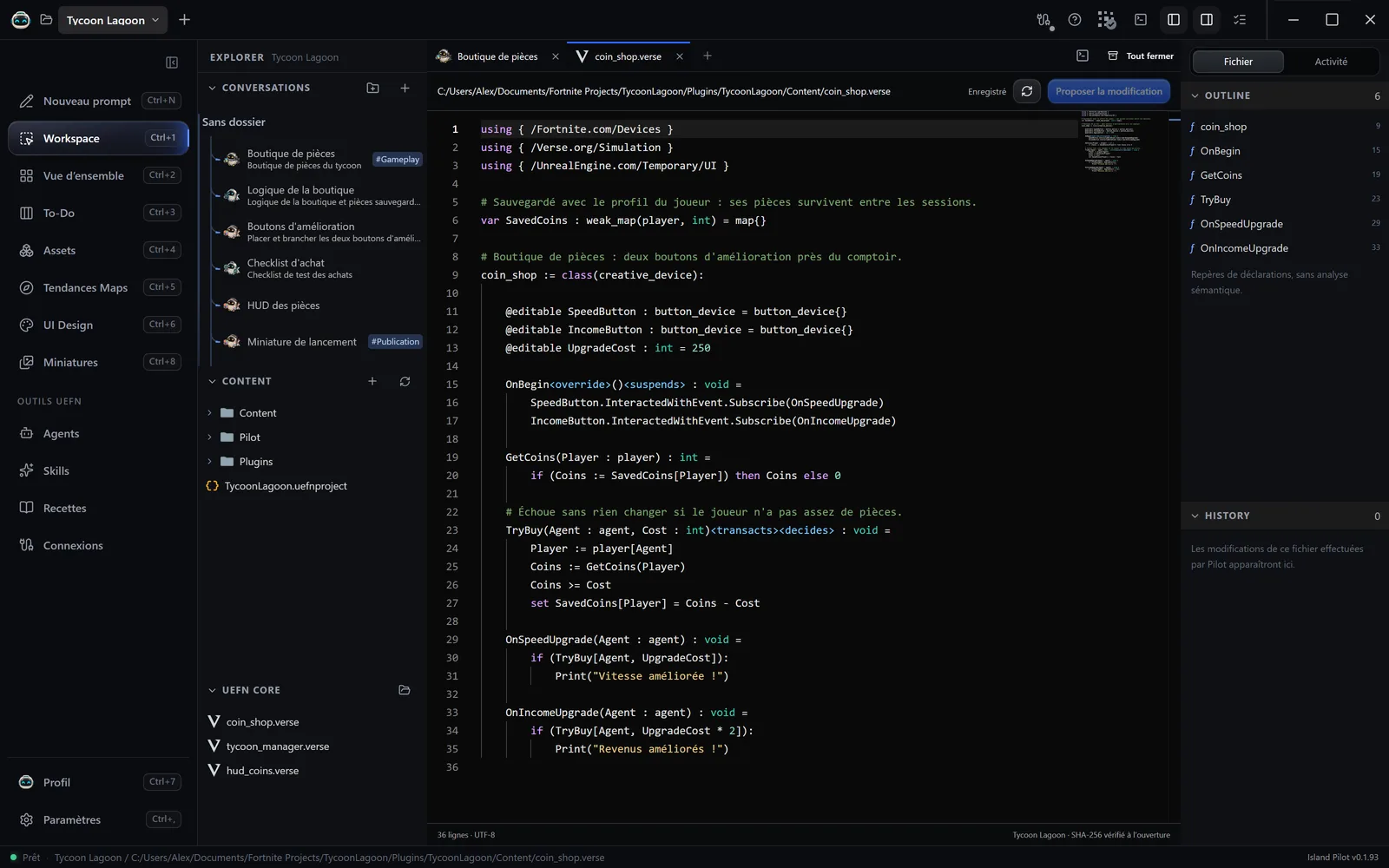
Read a file
Section titled “Read a file”- The Content panel shows your island’s folder. Click a file to open it, up to 512 KiB.
- Outline, on the right, lists the file’s declarations. The editor colours the code but does not flag any error while you type: only compiling does that.
- UEFN Core shows the digests in read-only mode: files that UEFN generates to describe the available functions. If the folder is not found on its own, choose it with the folder icon of this panel. The secours (backup) tag indicates a copy taken from another of your projects, until UEFN regenerates the file.
Edit a file yourself
Section titled “Edit a file yourself”- Edit the text. The status changes to Brouillon modifié (Draft modified).
- Click Proposer la modification (Propose the change), or press Ctrl+S.
Despite its name, this button writes the file directly. It only checks that the file has not changed since you opened it. If it has: Conflit : le fichier a changé. Relisez-le avant de proposer une nouvelle modification. (Conflict: the file has changed. Read it again before proposing a new change.) If an agent has reserved this file, the write is refused and your draft stays in place.
Create a class
Section titled “Create a class”- In Content, right-click your island’s
Contentfolder or one of its subfolders. - Choose Nouvelle classe Verse… (New Verse class…).
- In Nom (Name), keep the
.verseextension. The name accepts only letters, digits and the_character, and cannot start with a digit. - Click Créer (Create).
The file contains a minimal device, with its OnBegin. It only exists in UEFN after a compile. Creating a class is refused while an agent is working on the project: Arrêtez les agents de ce projet avant de le modifier. (Stop this project’s agents before changing it.)
What agents do
Section titled “What agents do”An agent reads the file, keeps its fingerprint, then writes to the project folder or goes through the editor’s Verse tools. If the file has changed in the meantime, the write is refused and the agent has to read it again. It then compiles, reads the errors and fixes them. The Verse Coder specialist is made for this work.
Compile and read the errors
Section titled “Compile and read the errors”- At the top of the window, click Compiler Verse (Compile Verse). The button is greyed out if the connection or the island is not verified, or if an agent is working on the project.
- Open Problèmes Verse (Verse problems), the neighbouring icon. Each line gives the severity, the message, the file and the line.
- Click an error to open the file at that spot.
| Display | Meaning |
|---|---|
| Aucune erreur ni avertissement à la dernière compilation. (No error or warning at the last compile.) | The code compiles. |
| Des modifications sont plus récentes. Recompilez pour actualiser. (Changes are more recent. Compile again to refresh.) | The list is no longer up to date. |
| Aucun diagnostic confirmé pour cette tentative. Consultez l’activité. (No confirmed diagnostic for this attempt. Check the activity.) | The attempt did not produce a readable result. |
Compiles started by agents appear in the same place. Unsaved drafts are left out. A compile with no errors proves that the code is valid, not that the game behaves as intended: see the limits.
When your approval is asked for
Section titled “When your approval is asked for”| Situation | What happens |
|---|---|
| Ask or Plan mode, read-only profile | Writing and compiling by an agent are refused. |
| Agent mode, file written in the project folder | The write happens without asking you. |
| Agent mode, tool of the UEFN connection | The call goes out without asking you. |
| Agent mode, with Demander confirmation avant chaque modification (Ask for confirmation before each change) ticked on the connection | The call waits above the conversation input: Autoriser une fois (Allow once) or Refuser (Refuse). A refusal stops the agent. |
Writes made in the project folder can still be reviewed: open the file, then click a line in History to see the differences. Other calls can be read again in Activité (Activity).