
The interface
This page teaches you to find your way around the window and to organise it as you like.
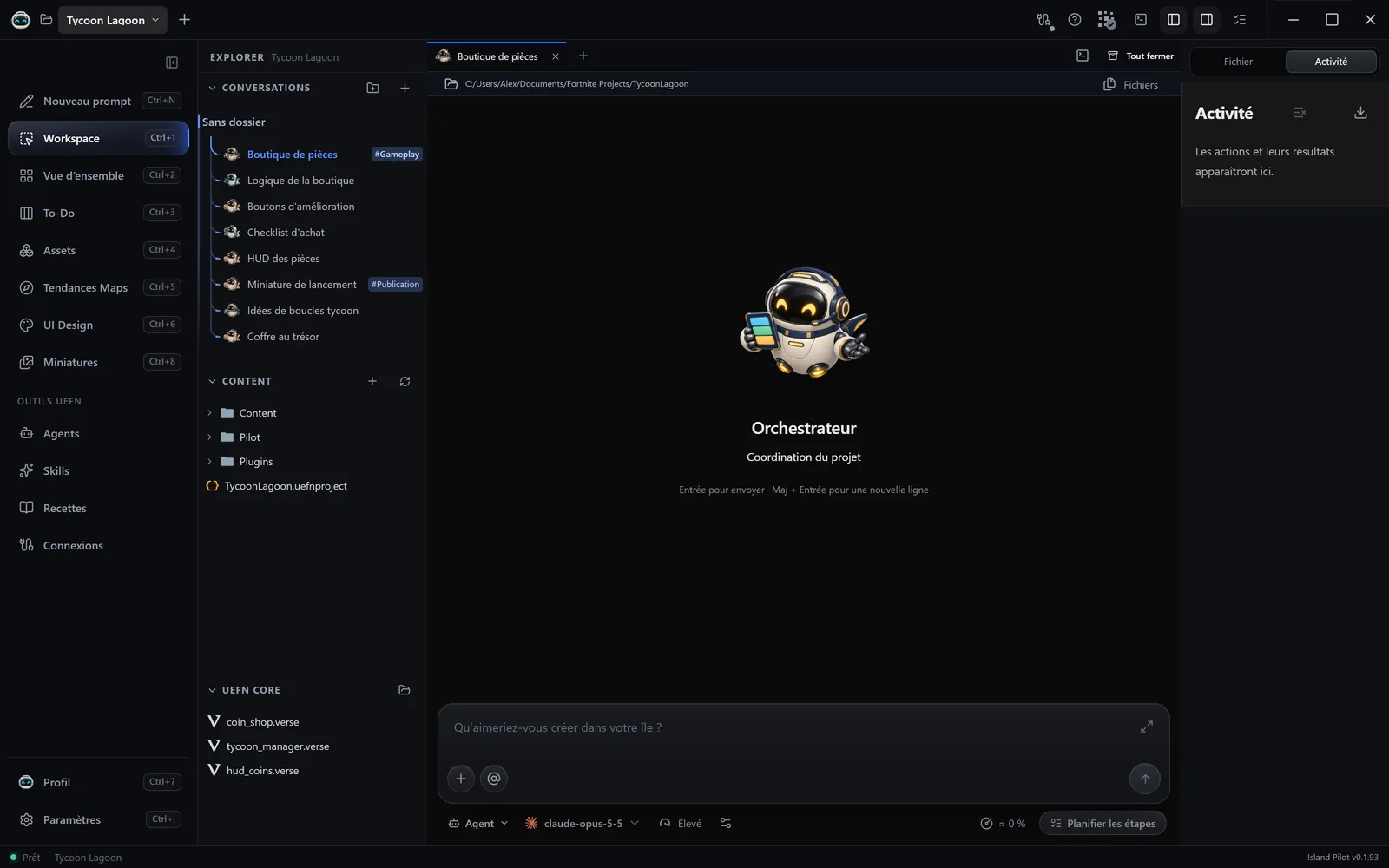
The sidebar
Section titled “The sidebar”It gives access to all the sections, on the left.
| Entry | Shortcut | What it is for |
|---|---|---|
| Nouveau prompt (New prompt) | Ctrl+N |
Start a conversation |
| Workspace | Ctrl+1 |
The main view: conversations and files |
| Vue d’ensemble (Overview) | Ctrl+2 |
Project progress |
| To-Do | Ctrl+3 |
The task board |
| Assets | Ctrl+4 |
The images and 3D models produced |
| Tendances Maps (Map Trends) | Ctrl+5 |
Inspiration |
| UI Design | Ctrl+6 |
The HUD and menus |
| Miniatures (Thumbnails) | Ctrl+8 |
The images for Discover |
| Noteboard | Ctrl+9 |
Notepad and canvases |
| Agents, Skills, Recettes (Recipes), Connexions (Connections) | The tools, under Outils UEFN (UEFN Tools). They open the sections of Paramètres (Settings) | |
| Profil (Profile) | Ctrl+7 |
Your creator card |
| Paramètres | Ctrl+, |
All the settings |
The button at the top, Réduire la navigation (Collapse navigation), keeps only the icons. To move an entry, hold it and drag it. Right-click also offers Monter (Move up), Descendre (Move down) and Ordre par défaut (Default order).
The top bar
Section titled “The top bar”On the left, the project selector, Nouveau projet (New project) and the Boîte de réception (Inbox), where updates arrive.
On the right, in order:
- Recherche rapide (Quick search): a page, a conversation or a file, with
Ctrl+K. - Signaler un problème (Report a problem): see Get help.
- Connexions MCP (MCP connections): the state of UEFN and of your connections. Click to see the detail.
- Problèmes Verse (Verse problems) and Compiler Verse (Compile Verse): see Verse.
- Terminaux (Terminals): your PowerShell windows.
- The buttons that show or hide the Explorer, the right-hand panel and Activité et validations (Activity and approvals).
The panels
Section titled “The panels”- The Explorer, on the left, contains three collapsible areas: Conversations, Content (the project files) and UEFN Core (the Verse folder generated by UEFN).
- The centre shows tabs: conversations, files, terminals, Paramètres. Tout fermer (Close all) closes them all, leaving a few seconds to click Rouvrir (Reopen).
- The right-hand panel has three tabs: Fichier (File), with the Outline and History of the open file; Activité (Activity), with the agents’ actions; and Versions, the Lore revisions, read-only.
To change a width or a height, drag the divider, or use the keyboard arrows when it is selected. Activité opens by itself when an action is waiting for you.
Pages such as Vue d’ensemble or UI Design take the full width, without the Explorer. The bottom bar shows the state of the project and the version of the app.
The zoom
Section titled “The zoom”| Action | Command |
|---|---|
| Zoom in or out | Ctrl + mouse wheel, or Ctrl + = and Ctrl + - |
| Return to 100% | Ctrl + 0 |
The zoom goes from 50% to 200% and stays the same from one launch to the next. On the UI Design and Noteboard canvases, Ctrl + mouse wheel zooms only the canvas.
Right-click
Section titled “Right-click”Most items have a right-click menu: conversations, files, cards, sidebar entries. Try it before looking for a button.