
Project overview
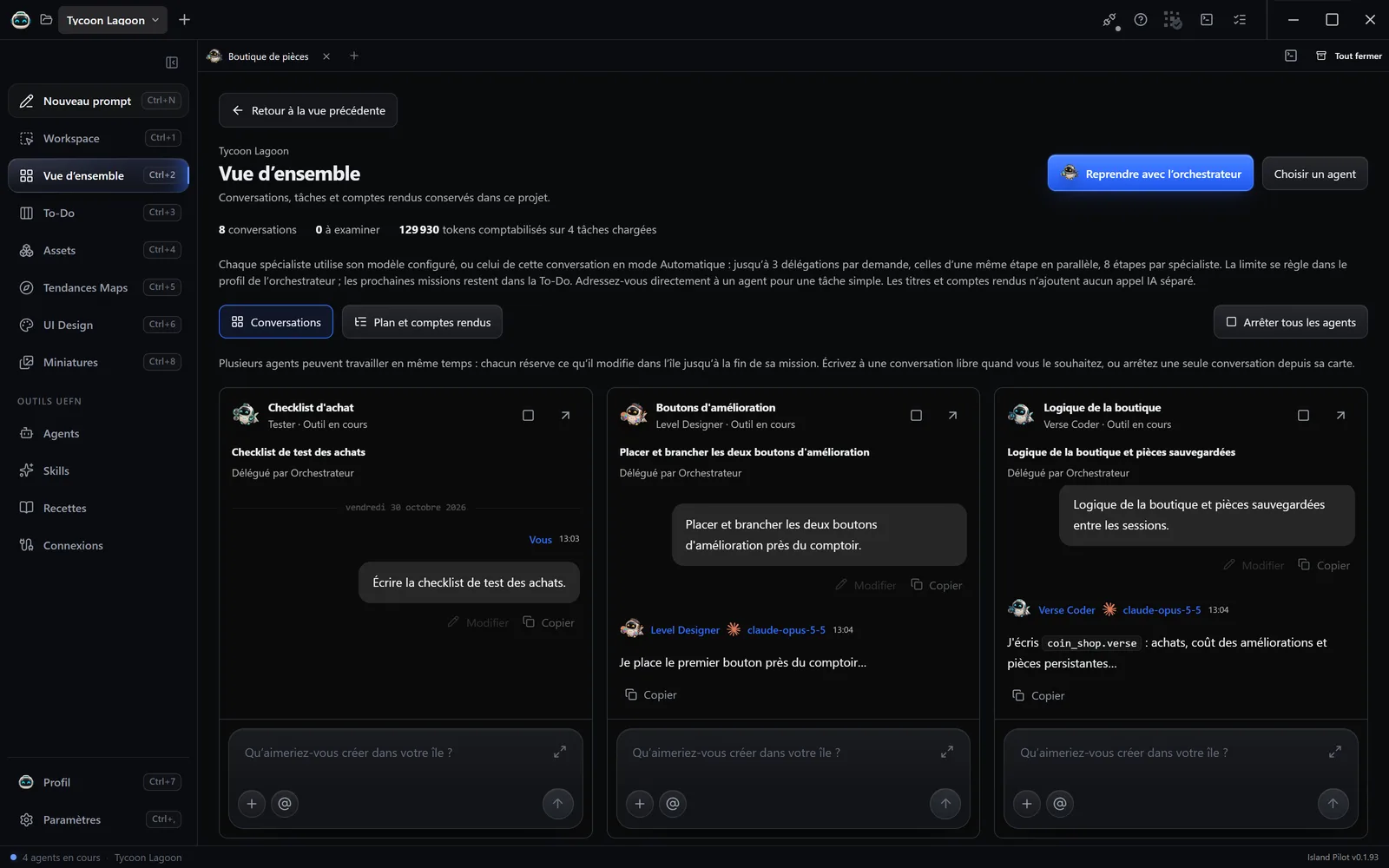
Vue d’ensemble (Overview) (Ctrl+2) shows a project’s conversations side by side. You will be able to follow several agents, arrange the windows and start the work with the orchestrator.
Start with the orchestrator
Section titled “Start with the orchestrator”A new project opens on this view.
- Click Démarrer avec l’orchestrateur (Start with the orchestrator). If the project already has tasks, the button becomes Reprendre avec l’orchestrateur (Resume with the orchestrator).
- The orchestrator’s conversation opens: the most recent one, or a new one if there is none.
- Describe your goal.
No AI call starts before your first message. For a simple task, Choisir un agent (Choose an agent) takes you straight to a specialist.
What the page shows
Section titled “What the page shows”At the top, three counters: the conversations, those à examiner (to review) (a question, an approval, a failure or work to continue) and the tokens counted.
Two views:
- Conversations: the windows. Those where an agent is working come first. Twelve are shown at first, then Afficher plus de conversations (Show more conversations).
- Plan et comptes rendus (Plan and reports): the plan, the result, the questions and the Skills loaded for each task, with the delegated tasks underneath.
The windows
Section titled “The windows”Each window shows the latest messages of the conversation, the work in progress and an input field. You can reply there and approve an action there, without opening the conversation. The field is locked as long as that conversation is working.
| Gesture | Effect |
|---|---|
| Drag the title | Move the window. Dropped on another one, the two swap places when possible. |
| Drag an edge | Resize. The neighbouring window gives up or takes back space. |
| Double-click the title | Enlarge. Esc returns to the view. |
| Arrow at the top right | Open in the Workspace. |
| Square | Stop this conversation. The others carry on. |
With the keyboard, move to the window’s handle: the arrow keys move, Shift + arrow keys resize.
The layouts
Section titled “The layouts”In Disposition (Layout), or by right-clicking outside the windows:
| Choice | Effect |
|---|---|
| Auto | Depending on the available width |
| 1, 2, 3, 4 | One to four columns |
| Focus | One large window and the others beside it |
| Perso (Custom) | Your last layout |
Perso appears as soon as you move or resize a window. Trying another layout does not erase it. The layout is kept per project, on this PC.
Stop the work
Section titled “Stop the work”Arrêter tous les agents (Stop all agents) appears when an agent is working in the project. To stop just one, use the square in its window or the right-click menu Arrêter cette conversation (Stop this conversation).
Several agents can work at the same time: see Agents in parallel.