
Build in UEFN
When a screen suits you, the UI Engineer builds it in UEFN’s widget editor. This page explains how to start it, how to carry your changes over and what is left to do afterwards.
Before you start
Section titled “Before you start”- UEFN must be open on this project.
- Link the buttons and the game values, on each element:
| Field | Role |
|---|---|
| Au clic › Action au clic (On click › Click action) | Aucune (None), Fermer ce menu (Close this menu), Ouvrir « … » (Open “…”) for another screen, or Évènement Verse… (Verse event…) |
| Donnée du jeu › Liaison Verse (Game data › Verse binding) | The name of the Verse field that supplies the value in game. If empty, the value stays the one from the design. |
With no element selected, Propriétés (Properties) shows the Prêt pour UEFN ? (Ready for UEFN?) section. It lists what needs another look: a button with no action, a fixed value, an image with no asset, a deleted screen.
The Compléter pour UEFN (Complete for UEFN) button adds the bindings for dynamic values and the default animations. The actions and the icons are left to your choice.
Implement a screen
Section titled “Implement a screen”- Open the screen.
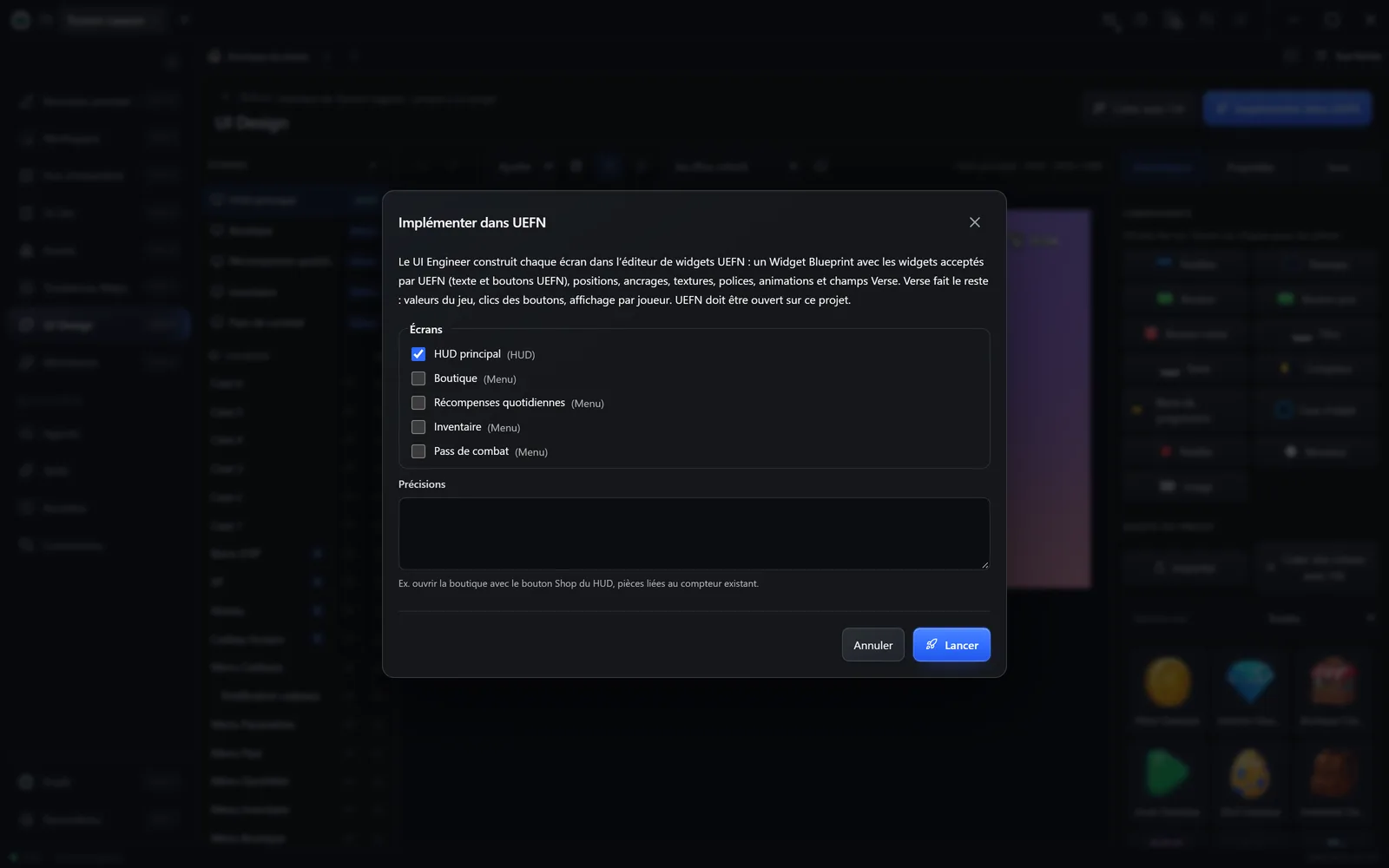
- Click Implémenter dans UEFN (Implement in UEFN).
- Tick the screens to build.
- If needed, add Précisions (Details), for example which HUD button opens the shop.
- Click Lancer (Start).
- Click Suivre la conversation (Follow the conversation) to follow the work and answer the agent.
Each screen becomes a Widget Blueprint (UEFN’s interface file) in /<Projet>/UI/<Écran>/WBP_<Écran>, with its textures and sounds. The screen then carries the UEFN mention in the list, and the Dans UEFN (In UEFN) section of each element shows its widgets, its Verse field and its textures.
The agent’s report says what it checked and what is left to do by hand: read it.
Carry over your changes
Section titled “Carry over your changes”Once the screen is built, the button becomes Mettre à jour dans UEFN (Update in UEFN). Prêt pour UEFN ? shows the status, for example “À reporter dans UEFN : 2 modifications.” (To carry over to UEFN: 2 changes.) or “À jour avec UEFN.” (Up to date with UEFN.)
| Action | What the UI Engineer does | When to use it |
|---|---|---|
| Mettre à jour dans UEFN | Opens the existing Widget Blueprint and carries over only the added, changed or deleted elements, with the new textures and sounds. No widget is recreated. | The usual case. |
| Tout reconstruire… (Rebuild everything…), in Prêt pour UEFN ? | Rebuilds the Widget Blueprint entirely. | When the update is no longer enough, or if the widget has changed too much. |
Duplicating a screen creates a new screen, with no link to the original’s widget. Deleting a screen does not delete its widget in UEFN.
What is left to do
Section titled “What is left to do”| Topic | To do | Why |
|---|---|---|
| Animation keyframes | The agent creates each animation, its duration and its widget. You set the keyframes in the Animations panel of the widget editor. They are listed in the screen’s notes and, on hover, in Dans UEFN. | UEFN exposes no tool for writing these keyframes. |
| Fonts | Import into /<Projet>/UI/Fonts the TTF files that the agent drops in Pilot/UI Design/Fonts, under the name it gives you. |
No tool imports fonts. In the meantime, the agent uses a Fortnite font (BurbankSmall) and tells you so. |
| Verse | Give the fields their values, react to clicks, show and remove the widget for each player. | The widget editor builds the interface, Verse brings it to life. |
| Test | Check the screen in a game session. | A built screen is not a tested screen. |
For the Verse, you can ask the UI Engineer for the code that displays the widget, or hand the game logic to the Verse Coder. Nothing happens for an Évènement Verse… until its code is written. See Verse.